All help topics
Calls
Website call widget — let visitors call you from your website
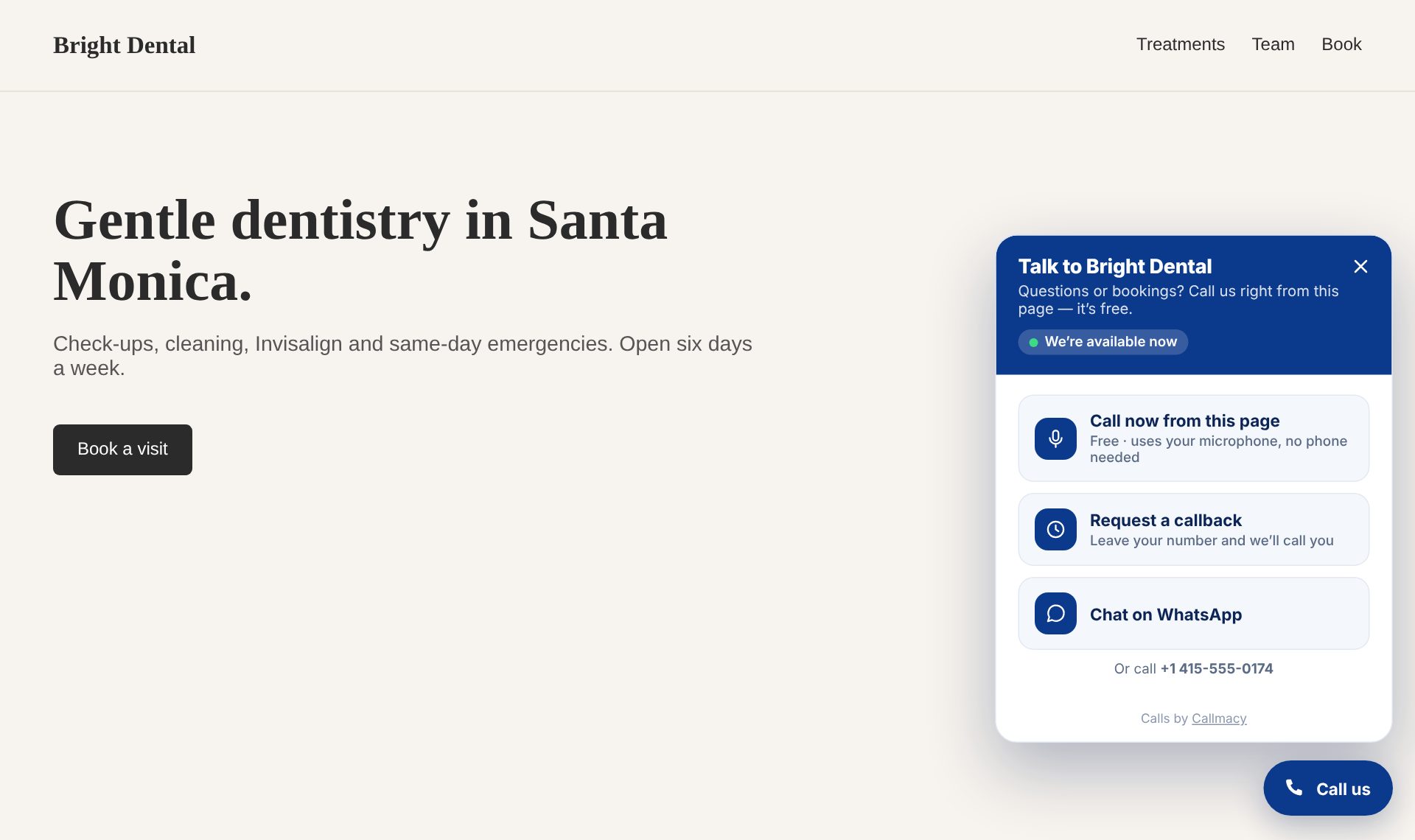
Add a “Call us” button to any website with one line of code. Visitors talk to you from their browser (no phone needed), tap to call, chat on WhatsApp or leave a callback request.
The website call widget adds a Call us button to your website. When a visitor clicks it, they can:
- Call you from the page. They talk to you through their computer’s or phone’s microphone. It’s free for them, with no app, phone or account needed.
- Request a callback. They leave their name, number and a note. You get an email, and the request appears in your dashboard.
- Tap to call your number on a mobile, chat on WhatsApp, or send a text, if you switch those on.
Calls from the widget follow your number’s normal settings. They ring your team’s web phones and mobiles, or go to your ring group, queue, phone menu, AI receptionist and voicemail, with your opening hours applied. To your team, a widget call is just an incoming call on that number. It shows up in Calls with the visitor’s name and a Website label.
Set it up (5 minutes)
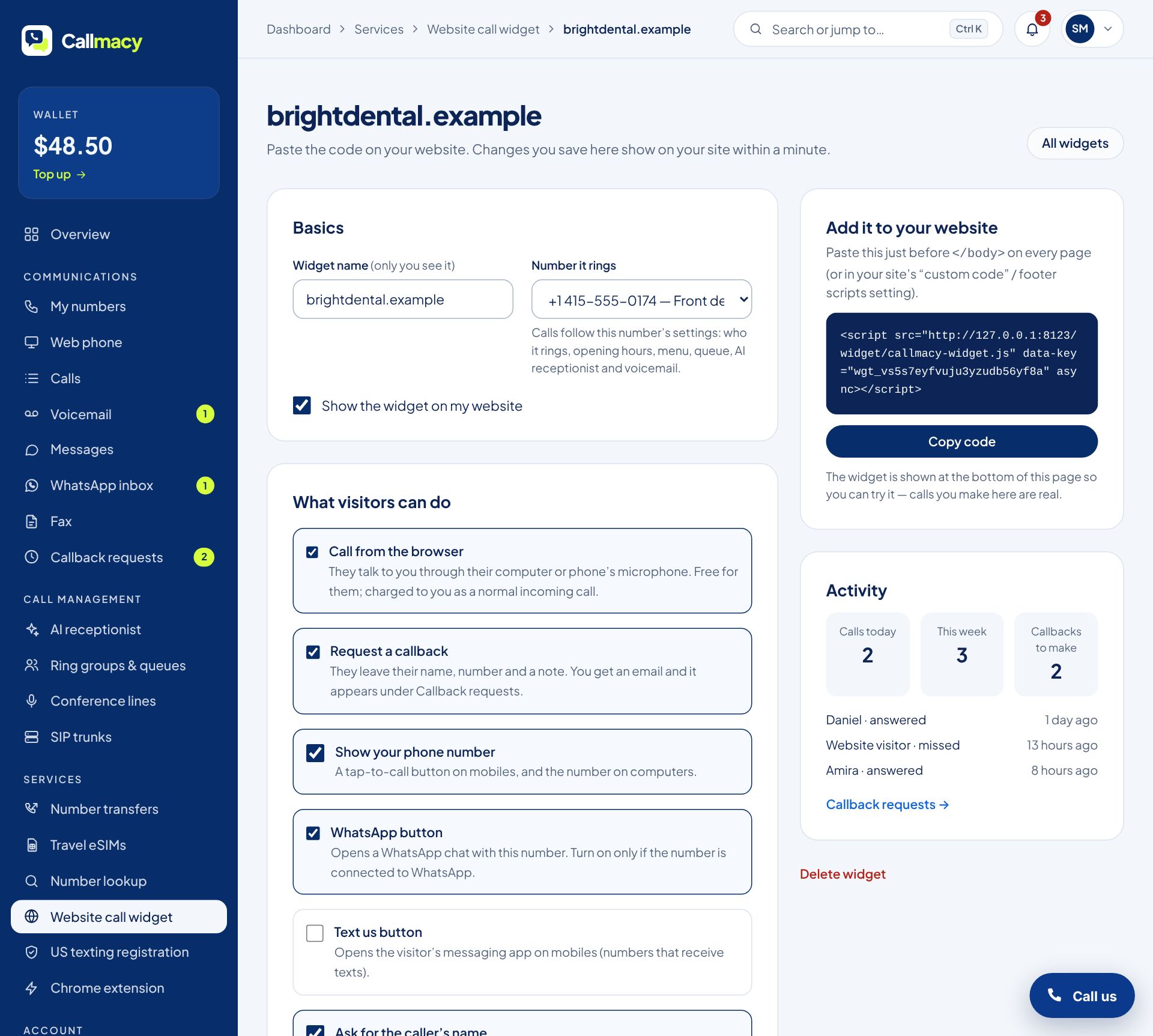
- Open Website call widget in the dashboard menu and click New widget.
- Choose the number it rings. Calls follow that number’s routing, so set it up under My numbers first. For example, ring your team’s web phones, then go to voicemail.
- Choose what visitors can do, then pick your colour, button text and heading.
- Under Only show on these websites, enter your domain, e.g.
example.com(subdomains are included). We recommend this, because it stops anyone copying your widget onto another site. - Click Create widget, then Copy code.
- Paste the code on your website, just before
</body>, on every page where you want the button:
<script src="https://callmacy.com/widget/callmacy-widget.js" data-key="wgt_…" async></script>
The button appears straight away. The widget also shows at the bottom of its own settings page in your dashboard, so you can try it there. Calls you make from there are real.
Where to paste the code
| Website builder | Where it goes |
|---|---|
| WordPress | Use a plugin like WPCode (Header & Footer → Footer), or your theme’s “Footer scripts” setting |
| Shopify | Online Store → Themes → Edit code → theme.liquid, just before </body> |
| Wix | Settings → Custom code → Add code → Body – end, on all pages |
| Squarespace | Settings → Advanced → Code injection → Footer |
| Webflow | Site settings → Custom code → Footer code |
| Google Tag Manager | New tag → Custom HTML → paste → trigger on All pages |
| Your own site | Paste it into your page template, before </body> |
Changes you save in the dashboard (colours, text, options) show on your website within a minute. You don’t need to paste the code again.
What visitors see
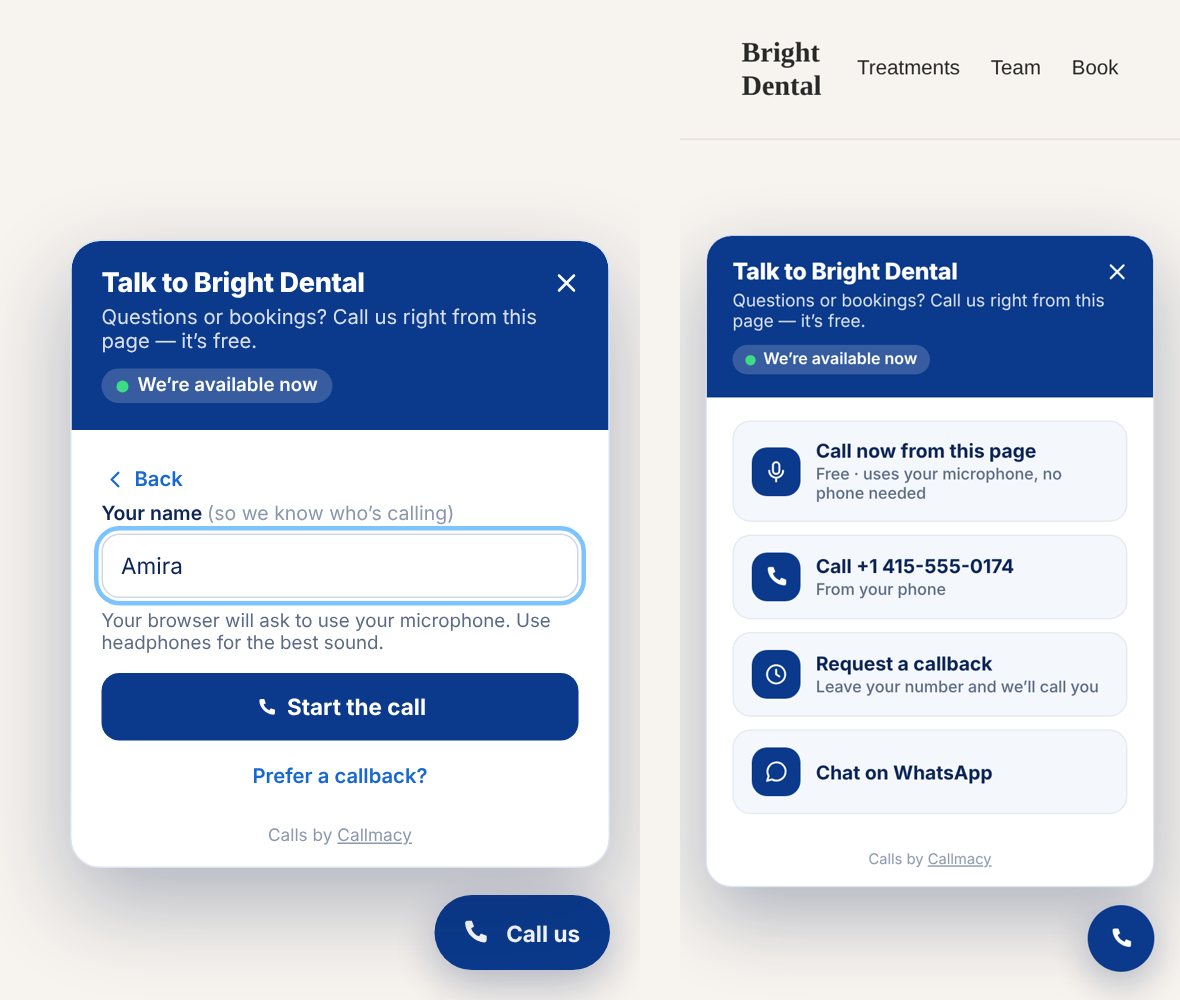
- Call now from this page. The visitor types their name (optional) and clicks Start the call. Their browser asks once for permission to use the microphone. While connected, they can mute, use a keypad (to press 1, 2… in your phone menu) and hang up.
- Request a callback. A short form asks for their name, phone number and what it’s about.
- On mobiles, they also get a Call +1 … button that opens their phone’s dialler.
- Status. The panel shows We’re available now or We’re closed right now, based on your number’s opening hours. Out of hours, calls still follow your after-hours setting (usually voicemail or the AI receptionist).
The widget works in all modern browsers on computers, iPhone and Android. It loads in the background and doesn’t slow your site down. The calling part only downloads when a visitor actually starts a call.
Callback requests
Requests appear under Callback requests in the menu. The number next to it shows how many are still open.
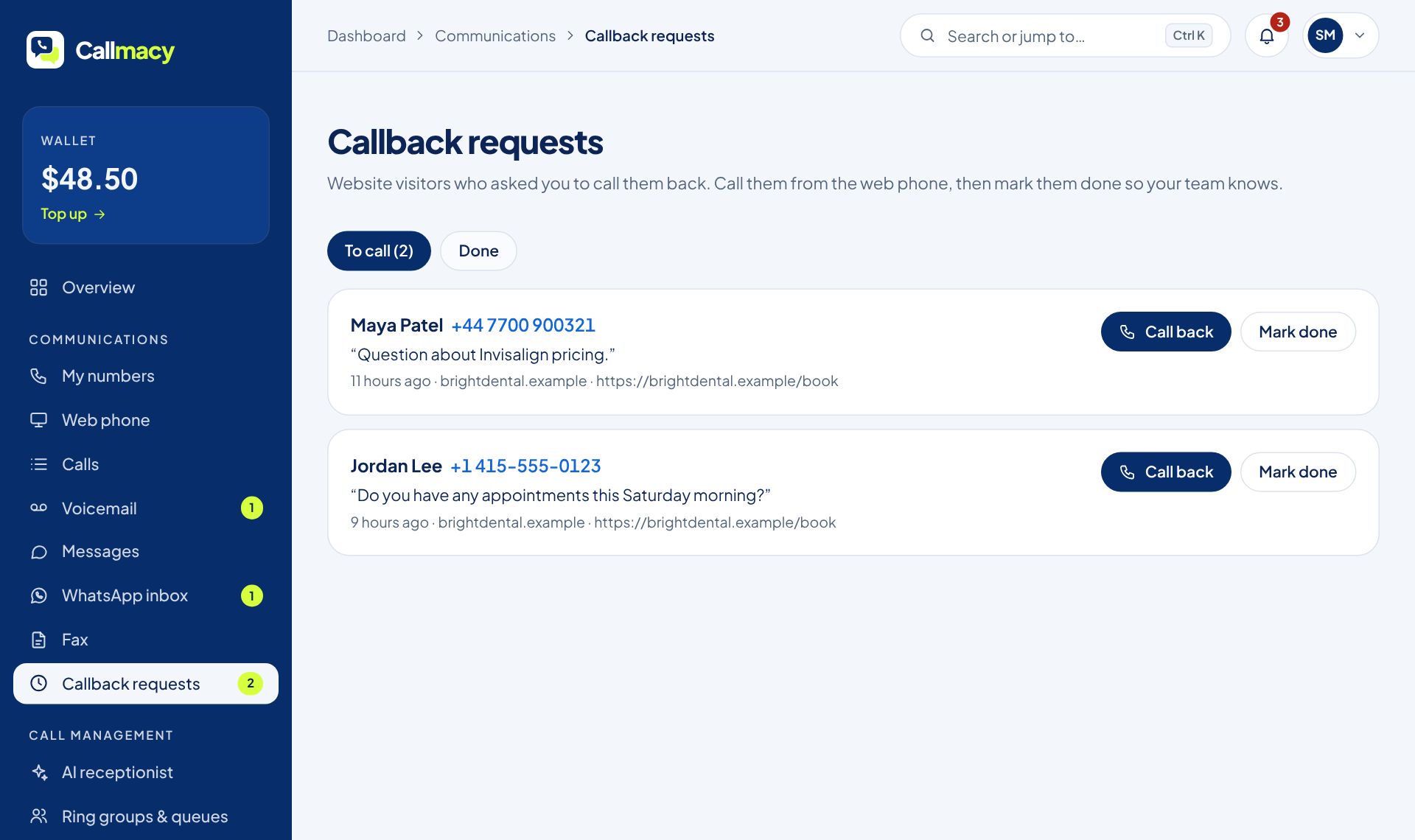
- Click Call back to open the web phone with their number already filled in.
- Click Mark done when it’s handled. Everyone on your team sees who handled it and when. Members can work on callbacks; only the owner and admins can change widgets.
- Each request is also emailed to the widget’s alert address (or your account email), and sent to your webhooks and Zapier as the
widget.callback_requestedevent. For example, you could create a task in your CRM for every request.
Cost
- Calls from the page: charged as a normal incoming call to the number, plus normal forwarding rates if the call rings a mobile. Ringing your team’s web phones costs nothing extra.
- Callback requests, tap-to-call, WhatsApp and text buttons: free. When you call someone back, it’s a normal outgoing call.
Protection against misuse
- Only show on these websites. The widget only works on the domains you list.
- Calls at the same time (default 3) and Calls per day (default 100) cap how many browser calls the widget takes.
- Each visitor can start only a few calls an hour.
- If your balance falls below $0.50, the widget offers a callback instead of a call, so you never run into debt.
- Visitors can only ever reach your chosen number. The widget can’t be used to call anyone else.
Troubleshooting
- The button doesn’t appear.
- Check that the code is on the page (view the page source and search for
callmacy-widget). - Check that Show the widget on my website is ticked.
- Check that your domain is in Only show on these websites exactly as it appears in the browser (e.g.
www.example.comorexample.com).
- Check that the code is on the page (view the page source and search for
- “Call now from this page” is missing. The number may not be active, browser calling may be switched off, or your balance may be low.
- The visitor can’t hear you, or you can’t hear them. Ask them to allow the microphone (the padlock icon in the address bar) and to use headphones. Some company networks block browser calls; a callback request still works.
- Calls go to voicemail. Check the number’s routing under My numbers, including its opening hours. Also make sure your team has the Web phone page open if the number rings web phones.
Related: Web phone · Ring groups & queues · AI receptionist · Webhooks & Zapier
Still stuck?
Email [email protected] or send us a message — we usually reply within one business day.
Related guides
Call forwarding and routing
Ring your mobile, several phones, your web phone, an IVR menu, your PBX or the AI receptionist — and change it any time.
Ring groups and call queues
Share calls across your team. Ring several phones together or in turn, or hold callers in a queue with music until someone is free.
Web phone
Make and take calls in your browser, with your virtual number as caller ID — no SIM or app needed.
Conference lines
Give clients and your team one number to dial and talk together. Protect it with a PIN, wait for the host, mute people, call someone in and record the call — no app or link needed.