All help topics
Calls
Chrome extension — click-to-call on any website
Call any phone number on any webpage (your CRM, Gmail, Google search, LinkedIn) with one click, using your business number. Talk in the browser, or have us ring your mobile first.
The Callmacy extension for Google Chrome puts a small call button next to every phone number on the web pages you use. One click calls the number from your Callmacy number. It works in your CRM, Gmail and Outlook on the web, Google search results, LinkedIn, booking systems, spreadsheets and anywhere else numbers appear.
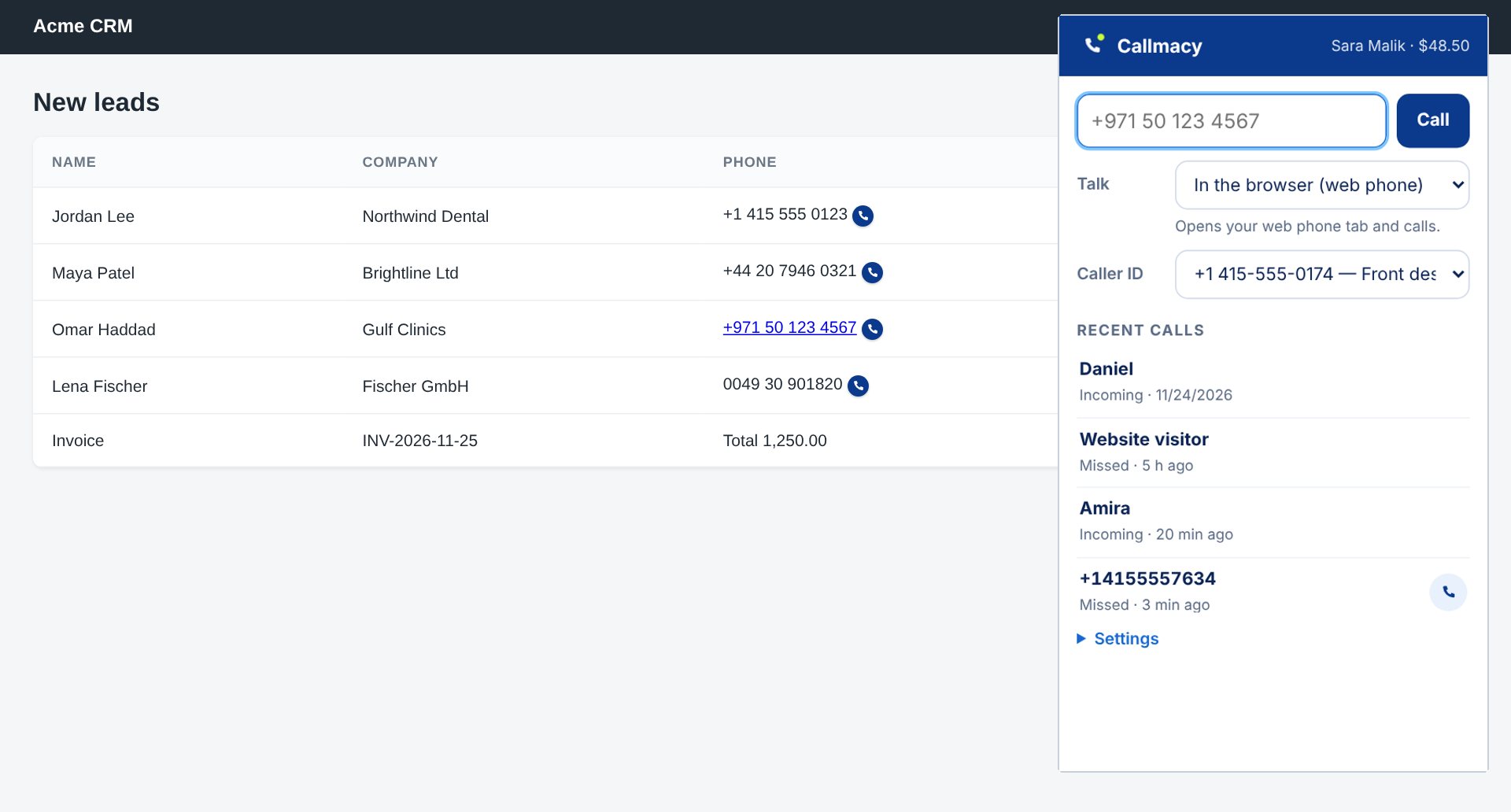
It works in Google Chrome, Microsoft Edge, Brave, Opera, Arc and other Chrome-based browsers on Windows, Mac, Linux and ChromeOS.
What it does
- Call buttons on every page. Numbers written with a country code (
+44 20 7946 0321,+1 (415) 555-0123,0049 30 901820) get a round call button. It ignores dates, prices and order numbers. tel:links (“Call us” links on websites) call with Callmacy instead of opening Skype, FaceTime or another app.- Right-click any selected number → Call with Callmacy.
- Toolbar dialler. Click the Callmacy icon to type a number, pick your caller ID, see recent calls and call back with one click.
- Your number shows as caller ID, so the person sees your business number, never your mobile.
Install and connect (2 minutes)
- In the dashboard, open Chrome extension.
- Install it. Click Download extension and unzip the file. Open
chrome://extensions, switch on Developer mode (top right), click Load unpacked and choose the unzippedcallmacy-chrome-extensionfolder. Then pin it: click the puzzle icon in the toolbar, then the pin next to Callmacy. - Connect it. Back on the Chrome extension page, click Connect the extension. You’ll see ✓ Connected. That’s it: you don’t copy or paste any keys.
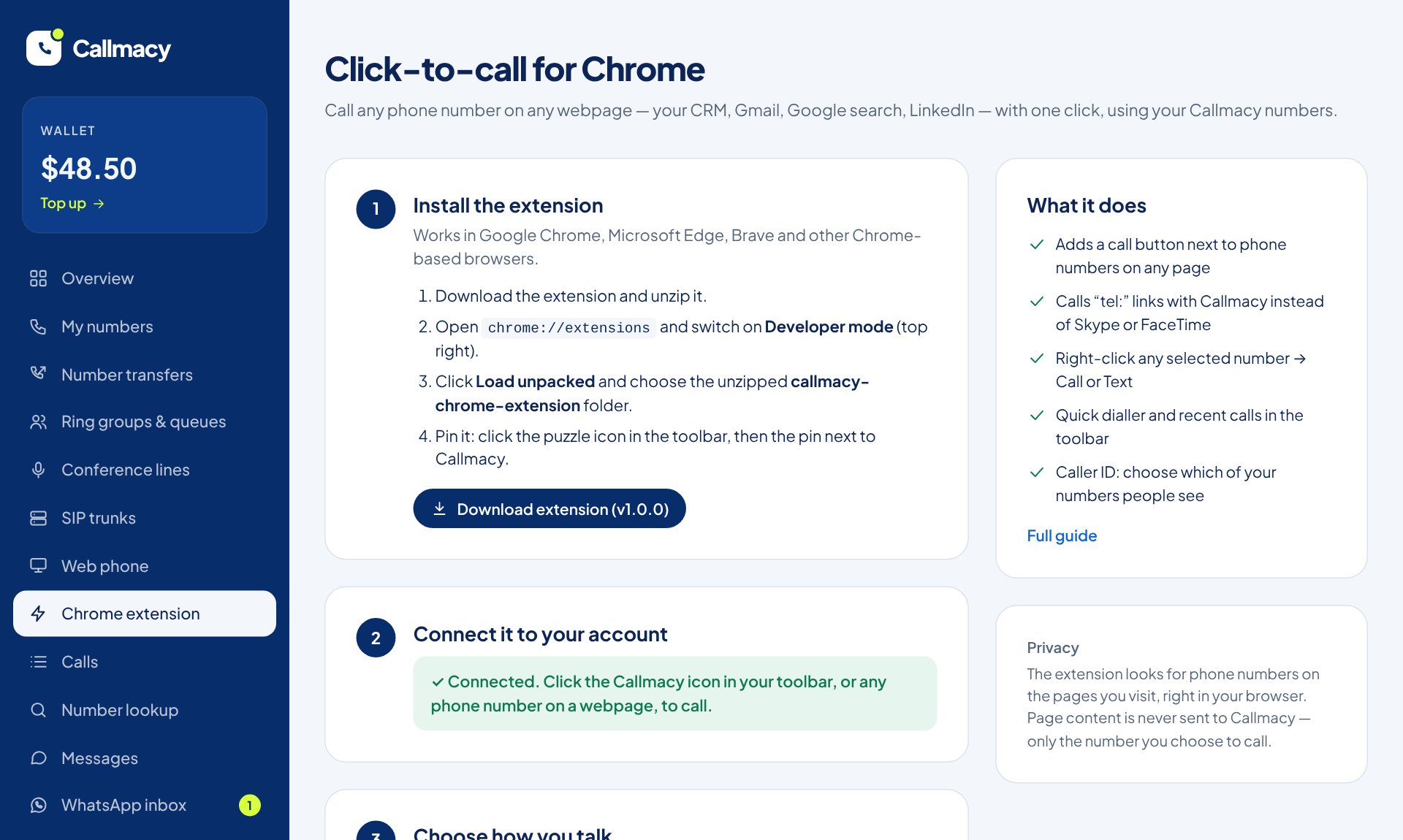
Each person connects their own browser while signed in as themselves. Owners, admins and team members can all use it. Calls use the account’s numbers and wallet, and show in Calls with the person’s name.
Two ways to talk
Choose in the extension (click the toolbar icon → Talk):
| In the browser | Ring my phone first | |
|---|---|---|
| How it works | Your web phone tab opens (or comes to the front) and calls straight away | We ring your mobile. Answer it, hear “Connecting your call…”, and we dial the number and connect you |
| Best for | Desk work with a headset | Away from the desk, no headset, or better sound on your mobile |
| What you need | A microphone/headset; allow the microphone once | A verified mobile number in Settings |
| Cost | The normal outgoing call rate to that number | The outgoing rate to that number plus the call to your own mobile |
If the number you call doesn’t answer in ring-my-phone-first mode, we tell you, then hang up. It never goes to your voicemail. To keep phone numbers from being misused, we only ever ring your own verified mobile.
Settings
Click the toolbar icon → Settings:
- Show call buttons next to phone numbers. Turn this off if you only want right-click and
tel:links. - Call “tel:” links with Callmacy.
- Turn off for this site. Hides the buttons on the website you’re on (for example your online banking). Click it again to turn them back on.
- Disconnect. Removes the connection from this browser.
Privacy and security
- The extension finds phone numbers inside your browser. Page content is never sent to Callmacy. Only the number you choose to call is sent, when you click.
- The connection uses a key that can only place calls, send texts and look up numbers for you. It can’t see invoices or top up, and it can’t change settings, webhooks or your team.
- See or remove connections on the dashboard’s Chrome extension page: Disconnect stops it working at once. When you remove someone from your team, their extension stops working immediately.
Troubleshooting
- No call buttons on a page. Numbers need a country code (
+or00). For local numbers like050 123 4567, select the number, right-click → Call with Callmacy, and add the country code in the dialler if asked. Some web apps draw numbers in ways extensions can’t read; use the toolbar dialler instead. Also check the site isn’t turned off under Settings. - “Connect the extension to your account first.” Open the dashboard’s Chrome extension page and click Connect the extension. Make sure you’re signed in to Callmacy in the same browser.
- “Verify your mobile number in Settings first.” Ring-my-phone-first mode needs a verified mobile. Add it under Settings → Mobile number, or switch Talk to In the browser.
- The web phone tab opens but doesn’t call. Allow the microphone (the padlock icon in the address bar). The first time, you may need to click Call yourself.
- Updating. Download the latest version from the dashboard, replace the folder, and click the reload icon on the extension in
chrome://extensions.
Related: Web phone · Account security & verified mobile · Webhooks & API
Still stuck?
Email [email protected] or send us a message — we usually reply within one business day.
Related guides
Call forwarding and routing
Ring your mobile, several phones, your web phone, an IVR menu, your PBX or the AI receptionist — and change it any time.
Ring groups and call queues
Share calls across your team. Ring several phones together or in turn, or hold callers in a queue with music until someone is free.
Web phone
Make and take calls in your browser, with your virtual number as caller ID — no SIM or app needed.
Conference lines
Give clients and your team one number to dial and talk together. Protect it with a PIN, wait for the host, mute people, call someone in and record the call — no app or link needed.