All help topics
Calls
Conference lines
Give clients and your team one number to dial and talk together. Protect it with a PIN, wait for the host, mute people, call someone in and record the call — no app or link needed.
A conference line is a phone number that many people dial at the same time to talk together. It works from any phone — mobile, landline or office phone — anywhere in the world, with no app, link or account. You control the call live from your Callmacy dashboard.
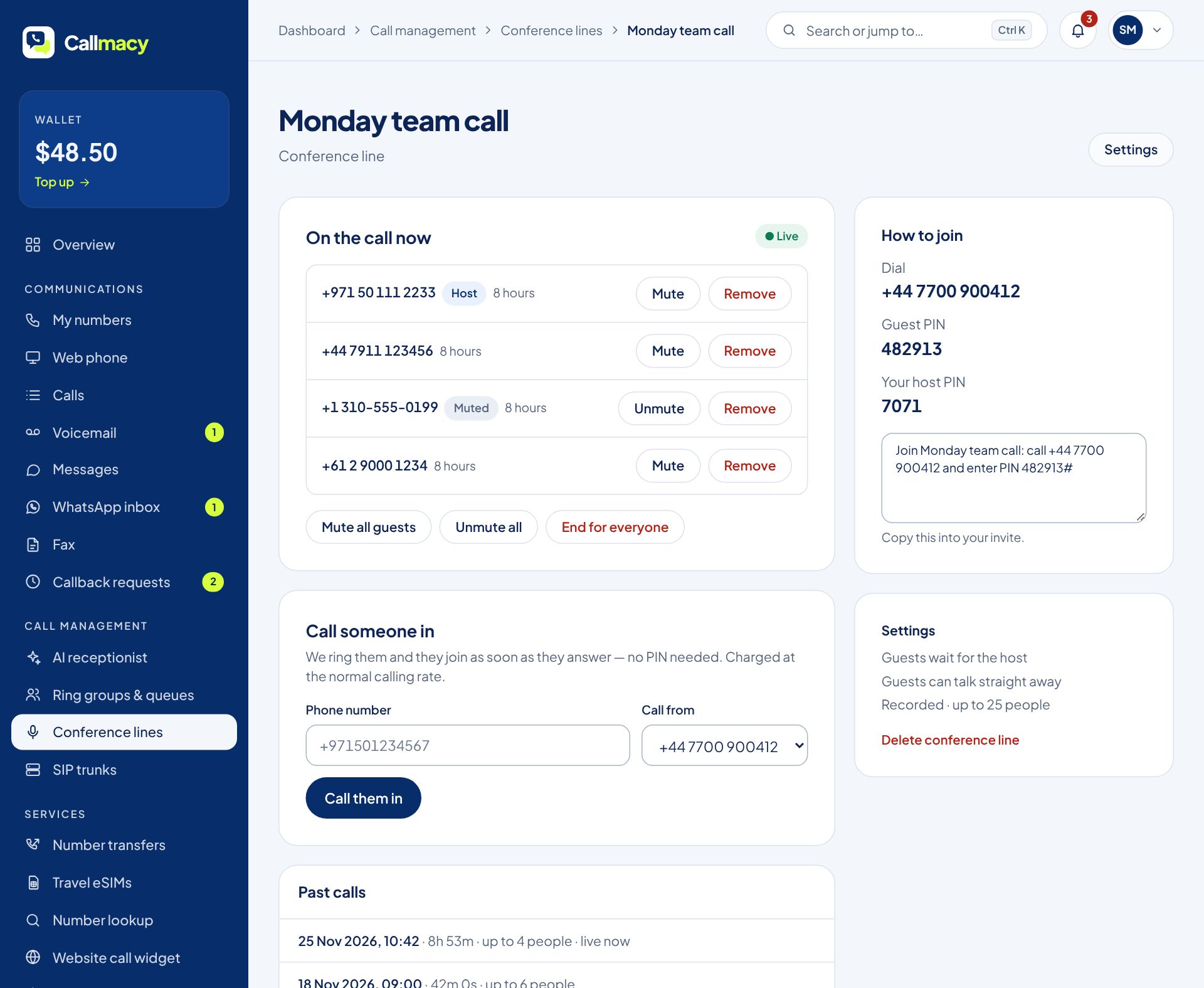
Good for: weekly team calls, client and supplier calls, board meetings, investor updates, training sessions, support escalations, and teams spread across countries.
Quick start (5 minutes)
- Create the line — Conference lines → New conference line. Name it and keep the suggested PINs (or choose your own).
- Give it a number — My numbers → choose a number → When someone calls → Conference line, pick your line, Save.
- Invite people — copy the ready-made invitation from the conference page into your calendar invite or email.
- Join — dial the number, enter your host PIN and press #.
That’s it. Everyone else dials the same number with the guest PIN.
Create a conference line
Open Conference lines in the menu and click New conference line.
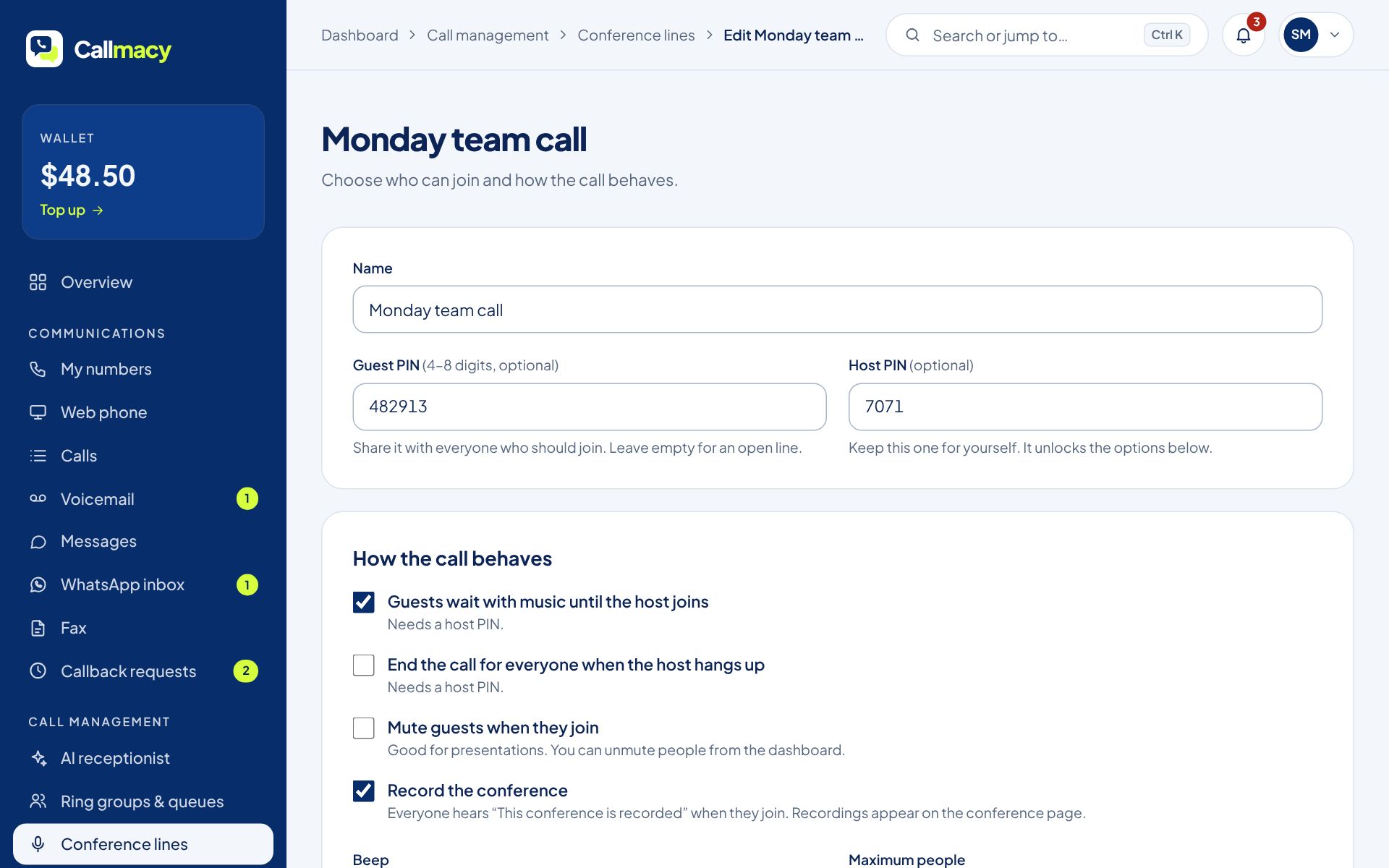
| Setting | What it does | Tip |
|---|---|---|
| Name | Shown in your dashboard and read to callers (“Welcome to Monday team call”). | Use a name people recognise. |
| Guest PIN | 4–8 digits everyone enters to join. Leave empty for an open line. | Always use one for client or confidential calls. |
| Host PIN | Your own PIN. Joining with it marks you as the host and unlocks the two options below. | Don’t share it. It must differ from the guest PIN. |
| Guests wait with music until the host joins | Guests hear calm music; the call starts the moment you join. | Stops people talking (or using your line) before you arrive. |
| End the call for everyone when the host hangs up | When you leave, everyone else is disconnected. | Use for meetings with a clear end. |
| Mute guests when they join | Guests can listen but not talk until you unmute them. | Ideal for presentations, webinars and large calls. |
| Record the conference | Everyone hears “This conference is recorded” when they join. | Required notice in many countries — see Recording and privacy. |
| Beep | Plays a tone when people join, leave, both, or never. | “When people join” is the least distracting. |
| Maximum people | The line refuses callers beyond this number. | Up to 50 people. |
You can change any setting later with Settings on the conference page. Changes apply to the next person who joins.
Give it a dial-in number
A conference line needs at least one number people can dial.
- Open My numbers and choose a number.
- Under When someone calls, choose Conference line and pick your line.
- Click Save.
Several dial-in numbers: point numbers from different countries at the same line — a UK, US and UAE number, for example. Everyone dials a local number and ends up in the same call, so international participants avoid international call charges.
Through a phone menu: to keep your main number for normal calls, add a menu option instead — set its action to Join a conference line (e.g. “Press 3 to join the team call”). See Call forwarding, IVR and business hours.
Inviting people
The conference page shows a ready-made invitation such as:
Join Monday team call: call +44 20 3807 1142 and enter PIN 482913#
Paste it into your calendar invite, email or WhatsApp. Mobile phones can also dial straight in if you write the number as +442038071142,,482913# (each comma waits two seconds before the PIN is entered).
Joining a call
- Dial the conference number.
- Listen to the welcome, then enter the PIN and press #.
- Guests enter the guest PIN.
- The host enters the host PIN.
- On a line with only a host PIN, guests just press #.
- If the host hasn’t joined yet (and you chose to wait for the host), you’ll hear music until they arrive.
Wrong PIN? You get three tries before the call ends.
You can join from your browser too: open Web phone and dial the conference number.
Run the call from your dashboard
Open the line from Conference lines while a call is on. The participant list updates every few seconds and shows each person’s number, whether they’re the host, whether they’re muted and how long they’ve been on.
- Mute / Unmute one person — handy for background noise.
- Mute all guests / Unmute all — for presentations or Q&A.
- Remove — disconnects one person.
- End for everyone — disconnects everybody at once.
- Call someone in — enter any phone number and we ring them; they join the moment they answer, with no PIN. Choose which of your numbers they see as caller ID.
Recording and privacy
With Record the conference on, recording starts when the call starts (when the host joins, if guests wait for the host). Everyone hears “This conference is recorded” before entering their PIN. The recording appears under Past calls on the conference page when the call ends, with the date, length and how many people joined.
Recording laws vary: many countries require everyone to be told, and some require consent. The automatic announcement covers the notice; make sure your use is lawful where you and your participants are.
Costs
- Conferencing: $0.005 per person per minute.
- Each caller’s minutes: normal incoming minutes on the number they dialled (see Pricing).
- Calling someone in: the normal calling rate for their country.
Example: 5 people on a 30-minute call = 150 person-minutes × $0.005 for conferencing, plus 150 incoming minutes on your number. Every charge appears in Wallet & billing.
Example setups
Weekly team call — guest PIN, host PIN, guests wait for the host on, beep when people join. Point a local number in each country your team works in at the line.
Client calls — new guest PIN for each client project (create a line per client), end when the host hangs up on, recording on if you keep call notes.
Webinar or company update — mute guests when they join on, wait for the host on, maximum people raised. Unmute people individually for questions.
Always-open team room — no PINs, beep never. Anyone with the number can drop in any time.
Troubleshooting
“My PIN isn’t accepted.” Enter the digits, then press #. Check you’re using the guest PIN (not the host PIN, or the other way round) for this line — each line has its own PINs, shown on its page.
“I only hear music.” The line is waiting for the host. Join with the host PIN, or turn off Guests wait with music until the host joins.
“People can’t hear me.” You may be muted — check for a Muted label next to your number on the conference page and click Unmute.
“Callers hear ‘this conference is full’.” Raise Maximum people in Settings.
“Call someone in didn’t ring them.” Check your wallet balance and that the number is in international format (+ and country code). Calls to blocked or premium destinations aren’t placed.
“The number goes to voicemail instead of the conference.” The number’s routing isn’t set to this line, or it was deleted. Open the number in My numbers and choose Conference line again.
“I can’t find the recording.” Recordings appear a minute or two after the whole call ends, and only if recording was on when the call started.
FAQ
How many people can join? Up to 50 per line, set by Maximum people.
Can people join from other countries? Yes. They can dial your number internationally, or you can add a local number in their country that points to the same line.
Do participants need an account or app? No — just a phone.
Can I have several lines? Yes, as many as you like, each with its own PINs and settings. A number can lead to one line at a time; a phone menu can offer several.
Is it secure? Use a guest PIN and a host PIN, keep wait for the host on, and watch the live participant list — you can remove anyone you don’t recognise. Lines are only reachable through numbers you point at them.
What happens if I delete a line? Anyone on it is disconnected, and numbers that pointed to it switch to voicemail.
Still stuck?
Email [email protected] or send us a message — we usually reply within one business day.
Related guides
Call forwarding and routing
Ring your mobile, several phones, your web phone, an IVR menu, your PBX or the AI receptionist — and change it any time.
Ring groups and call queues
Share calls across your team. Ring several phones together or in turn, or hold callers in a queue with music until someone is free.
Web phone
Make and take calls in your browser, with your virtual number as caller ID — no SIM or app needed.
Voicemail and voicemail-to-text
Get every voicemail by email with the message written out, and listen to them in your dashboard.