All help topics
Calls
SIP trunking
Connect 3CX, FreePBX, Asterisk, Yeastar or any SIP phone system to your numbers.
Already have a phone system? A SIP trunk connects it to your Callmacy numbers for incoming and outgoing calls.
Create a trunk
- Open SIP trunks.
- Under New trunk, enter a name, choose how many concurrent calls you need, and select the countries it may call.
- Click Create trunk.
Keep the country list short. It’s your best protection against toll fraud if your PBX is ever compromised.
Connect your PBX
Open the trunk and copy the settings into your phone system: SIP server, port and transport (TLS on 5061 recommended), username and password.
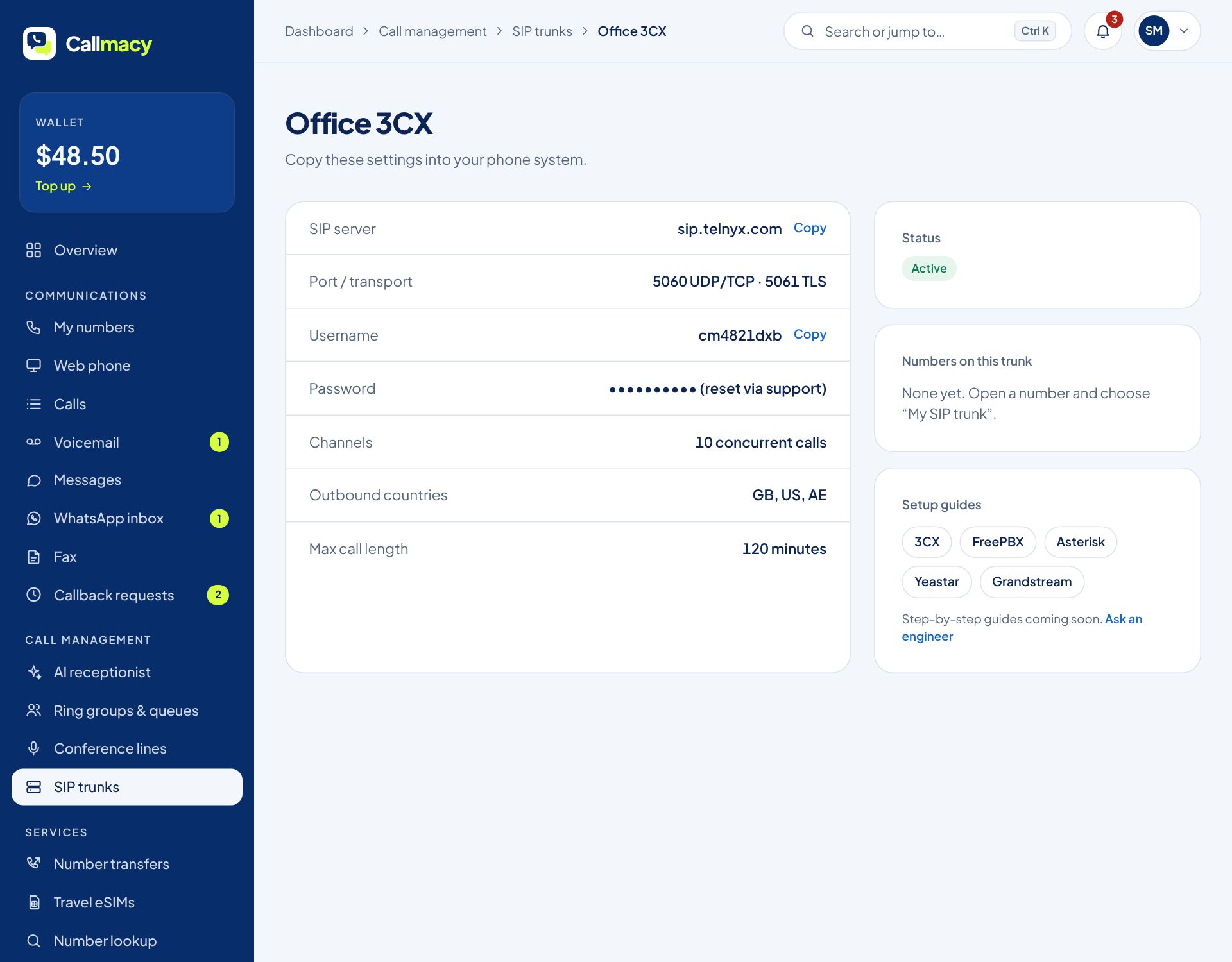
Send calls to the trunk
Open a number, set Routing mode to My SIP trunk and choose the trunk. Incoming calls then ring your PBX.
Send calls to a SIP address (AI voice agents)
Some systems don't log in to a trunk. They just receive calls at a SIP address. Examples are AI voice agents (LiveKit, Vapi, Retell) and hosted PBXs. For these, no trunk is needed:
- Open a number and set Routing mode to SIP address.
- Under SIP address, enter where calls should go, for example
sip:[email protected]. - Click Save routing.
Tips:
- Put your number before the
@so the receiving system knows which number was called. - Addresses on private networks and on Callmacy's own SIP servers are not accepted. To reach your own PBX through Callmacy, use My SIP trunk instead.
- If the address doesn't answer, the caller goes to voicemail (when voicemail is on).
Protection built in
- Daily spend caps and a maximum call length per trunk.
- Outbound calls only to the countries you allow.
- Encrypted calls (TLS + SRTP).
Still stuck?
Email [email protected] or send us a message — we usually reply within one business day.
Related guides
Call forwarding and routing
Ring your mobile, several phones, your web phone, an IVR menu, your PBX or the AI receptionist — and change it any time.
Ring groups and call queues
Share calls across your team. Ring several phones together or in turn, or hold callers in a queue with music until someone is free.
Web phone
Make and take calls in your browser, with your virtual number as caller ID — no SIM or app needed.
Conference lines
Give clients and your team one number to dial and talk together. Protect it with a PIN, wait for the host, mute people, call someone in and record the call — no app or link needed.