All help topics
Messaging
Fax to email and online fax
Receive faxes as PDF attachments in your email and send faxes from your browser — no fax machine, phone line or software.
Many hospitals, clinics, government offices, law firms and insurers still fax. With Callmacy you can receive faxes in your email as PDFs and send faxes from your browser, without a fax machine or extra line.
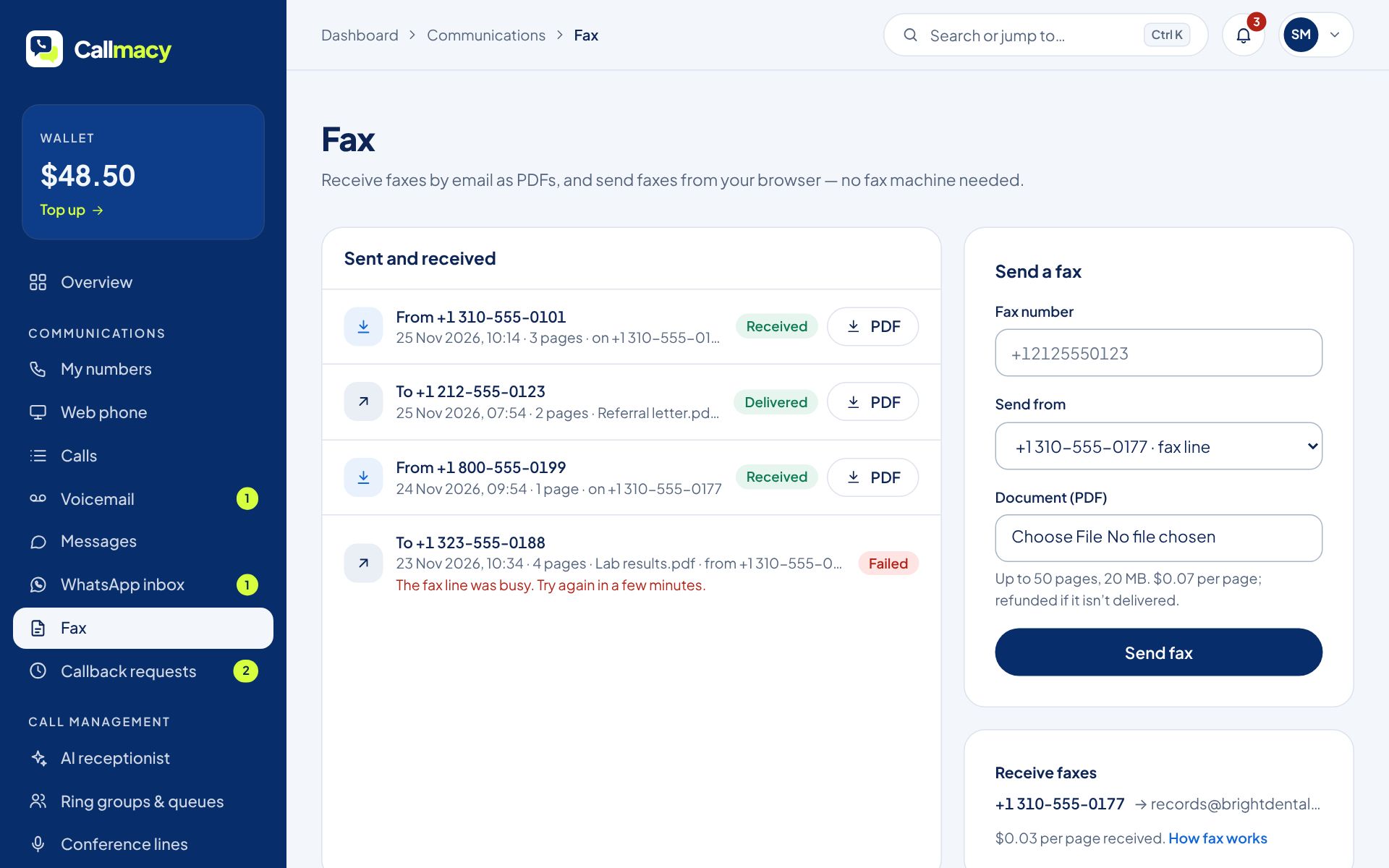
Receive faxes by email
- Open My numbers and choose the number you want to use as your fax number.
- In the Fax box, enter the email address faxes should go to (leave empty to use your account email).
- Click Use this number for fax and confirm.

From then on, every fax sent to that number arrives:
- by email, with the fax attached as a PDF and the sender’s number and page count in the subject;
- in Fax in your dashboard, where you can download it again any time.
Important: a fax number answers faxes only — it no longer takes voice calls. Use a separate number for fax (a local number costs from a few dollars a month), or switch back any time with Switch back to voice calls in the same box. Your call routing is kept for when you switch back.
Want a fax number you already have elsewhere? Transfer it to Callmacy, then turn on fax.
Send a fax
- Open Fax in the menu.
- Enter the fax number in international format, e.g. +12125550123.
- Choose the number to send from. Recipients see it as the sender; choose your fax line so replies come back to you.
- Upload a PDF (up to 50 pages, 20 MB) and click Send fax.
The fax appears in the list as Queued, then Sending, then Delivered. We email you when it’s delivered — or if it isn’t, with the reason.
Tips for a clean fax: use black text on a white background, A4 or US Letter pages, and avoid photos and dark backgrounds — fax is black and white. Scan paper documents at 200–300 dpi. To fax a Word document, save it as PDF first (File → Save as → PDF).
Costs
| Price | |
|---|---|
| Fax sent | $0.07 per page — refunded automatically if it isn’t delivered |
| Fax received | $0.03 per page |
| Fax number | The normal monthly price of the number |
Charges come from your wallet and appear in Wallet & billing.
Troubleshooting
“The line was busy” / “Nobody answered.” The recipient’s fax machine was busy or off. Wait a few minutes and send again — you weren’t charged for the failed attempt.
“The number didn’t answer as a fax machine.” You may have entered a phone number rather than a fax number. Check it with the recipient — Number lookup can also tell you whether it’s a landline.
“The PDF couldn’t be processed.” Very large, password-protected or unusual PDFs can fail. Save or print it to a new PDF and try again.
“I’m not getting faxes by email.” Check the email address in the number’s Fax box and your spam folder. Every fax also appears under Fax in the dashboard.
“My fax number stopped taking calls.” That’s expected while fax is on. Use Switch back to voice calls if you need calls on that number.
FAQ
Can I receive and send on the same number? Yes. Turn on fax for the number to receive, and choose it as the sender when you send.
Is it secure? Faxes are stored privately in your account and only you can download them. Email is as secure as your mailbox, so use an address only the right people can read.
Can I fax internationally? Yes, to most countries. Some destinations are blocked to protect against fraud.
Can I send faxes by email? Not yet — upload the PDF in Fax instead. Tell us if you need email-to-fax.
Still stuck?
Email [email protected] or send us a message — we usually reply within one business day.
Related guides
SMS
Receive and send text messages on your numbers, and get every new text by email.
Register US numbers for texting
US and Canada carriers only deliver texts from registered businesses. Register local (10DLC) or toll-free numbers in your dashboard and sending switches on automatically.
WhatsApp inbox and automatic replies
Chat with customers on WhatsApp from your dashboard, and let a welcome message or an AI assistant answer for you.