All help topics
AI
AI receptionist
A natural-sounding AI answers your calls 24/7, learns your business from your website, puts urgent callers through to your team, texts callers back and emails you a summary.
The AI receptionist answers calls in a natural voice, using only the information you give it. It can put callers through to the right person, take a message, text the caller a confirmation, and email you a summary with the transcript in your dashboard.

Good for: answering every call while you’re busy, covering lunch breaks and after-hours, handling overflow when your team is on other calls, and screening calls so only urgent ones reach you.
Set it up in 5 minutes
- Open AI receptionist.
- Let it learn from your website (optional): enter your web address under Fill this in from your website and click Learn from my website. See below.
- Under Your business, check or fill in:
- Business name and What you do — services, prices, location, languages. Be specific: the AI never makes up prices or promises.
- Opening hours and Common questions (optional but recommended).
- Under On the call, choose the language and voice, and optionally a greeting. It switches language if the caller prefers another.
- Under Always collect, tick what it should ask every caller for: name, reason for calling, callback number, email, preferred time.
- Optional: add people it can put callers through to, and turn on Text the caller after the call.
- Enter the email for call summaries, switch it on and click Save receptionist.
Then choose when it answers on your numbers (below).
Learn from your website
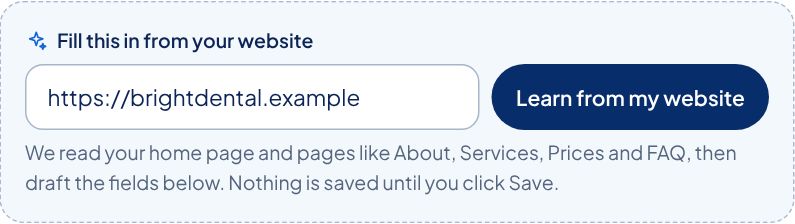
Enter your web address (e.g. brightdental.ae) and click Learn from my website. Callmacy reads your home page and up to six key pages — About, Services, Prices, FAQ, Contact — and drafts What you do, Opening hours and Common questions for you.
- Review before saving. Nothing changes until you click Save receptionist. Fix anything that’s out of date, and add details that aren’t on your website.
- It only uses facts from your pages and never invents prices or hours.
- Your website must be public. Pages behind a login, or built only from images, can’t be read — fill those details in yourself.
Put callers through to a person

Add up to three people — a name, their phone number, and when the AI should connect them. For example:
| Name | Number | When to connect |
|---|---|---|
| Dr Hina | +971 50 111 2233 | A patient has a dental emergency, severe pain or swelling |
| Sales | +44 7400 123456 | Someone wants a quote for a new project |
| Manager | +1 310 555 0142 | The caller insists on speaking to a manager |
The AI says “One moment, I’ll connect you to Dr Hina” and puts the call through. In every other situation it takes a message as usual. Be specific in When to connect — the clearer the situation, the better the AI judges it.
The call summary shows Put through to … so you know who took it. Connected time is charged at the normal forwarding rate for that number.
Text the caller after the call
Turn on Text the caller after the call and callers get a short SMS from the number they rang, for example: “Thanks for calling Bright Dental. We have your message and will call you back today.” Use {business} in your message for your business name.
- Texts go out only from numbers that can send SMS. US and Canada numbers need texting registration first.
- One text per call, charged at the normal SMS rate.
Choose when it answers
Open a number in My numbers and choose one of:
- Routing mode → AI receptionist — it answers every call.
- If nobody answers → AI receptionist answers — your phones ring first.
- When closed → AI receptionist answers — it covers after-hours.
It can also be an option in a phone menu, or the fallback for a call queue when callers have waited too long.
After every call

- Email summary to your chosen address: who called, what they wanted, their callback number and what was promised. Urgent calls are marked.
- In the dashboard under Calls the receptionist took: the summary, the full transcript, and labels such as Urgent, Put through to … and Texted back.
Test it
Call your own number from your mobile or the web phone and pretend to be a customer. Ask a question from your FAQs, ask for something urgent to test a transfer, and check the summary email arrives. Adjust What you do and Anything else it should do or avoid until it sounds right.
Tips for great answers
- Write prices, services and policies the way you’d say them on the phone.
- Put the questions callers really ask into Common questions, with short answers.
- Use Anything else it should do or avoid for rules, e.g. “Never quote prices for braces — say a consultation is needed.”
- Keep the greeting short. Callers want to talk, not listen.
The same knowledge on WhatsApp
The WhatsApp AI assistant uses the same business information to answer chats.
Pricing
The AI receptionist is part of the AI Plus plan (see Plans and billing). On top of the plan, it costs $0.15 per minute the receptionist is on the call, rounded up to the minute, plus the normal incoming rate for your number. Transfers are charged at the forwarding rate while connected, and text-backs at the SMS rate. If your balance is below $0.50, calls go to voicemail instead.
FAQ
Does it tell callers it’s an AI? Add a line to your greeting if you’d like it to, e.g. “I’m the virtual assistant for Bright Dental.” In many places it’s good practice — and sometimes required.
What if it doesn’t know the answer? It says it will pass the question to your team and takes a message. It never makes things up.
What if the person I transfer to doesn’t answer? The AI stays with the caller and takes a message instead.
Can it book appointments into my calendar? Not yet — it collects the caller’s preferred time and your team confirms it.
Which languages does it speak? English, Arabic and French voices, and it switches to the caller’s language when it can.
Still stuck?
Email [email protected] or send us a message — we usually reply within one business day.